역할별 사용 안내
학부모 또는 선생님을 선택하세요
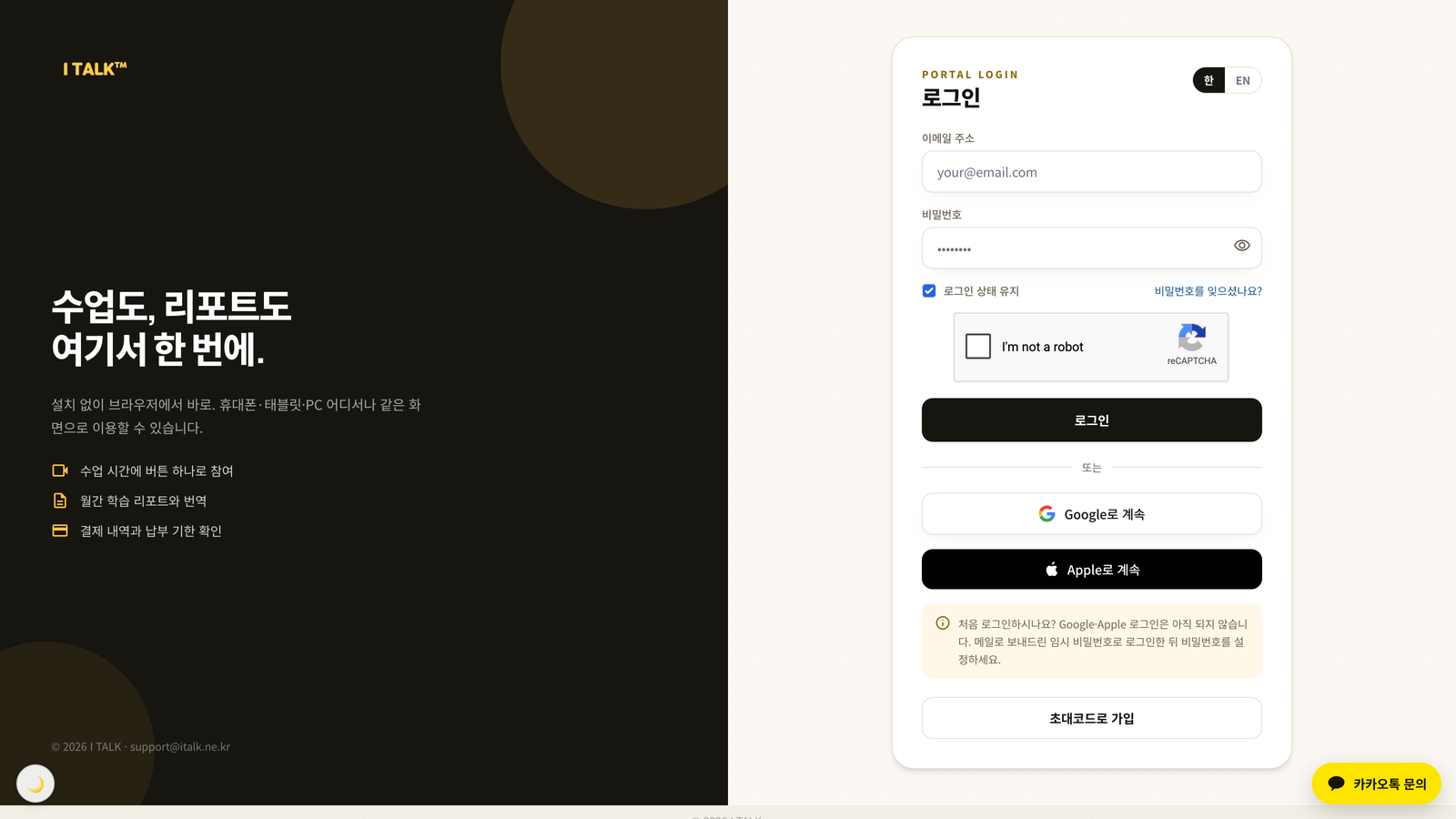
포털 접속하기
브라우저 주소창에 portal.italk.ne.kr 을 입력하세요. 휴대폰·태블릿·PC 어디서나 설치 없이 바로 이용할 수 있습니다.
로그인
학원에서 계정을 만들면 아이디(이메일)와 임시 비밀번호를 메일로 보내드립니다. 메일이 보이지 않으면 스팸함을 꼭 확인하세요. 처음 로그인하면 이용약관·개인정보 동의 후 비밀번호를 변경하게 됩니다. 비밀번호를 잊으셨다면 비밀번호를 잊으셨나요?를 누르세요.
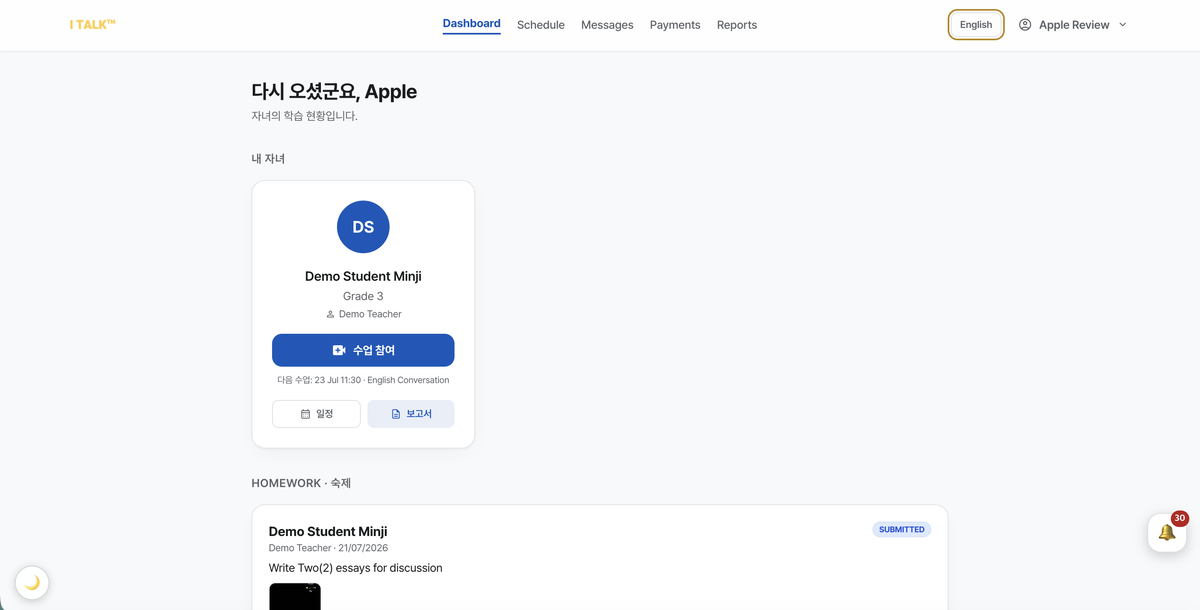
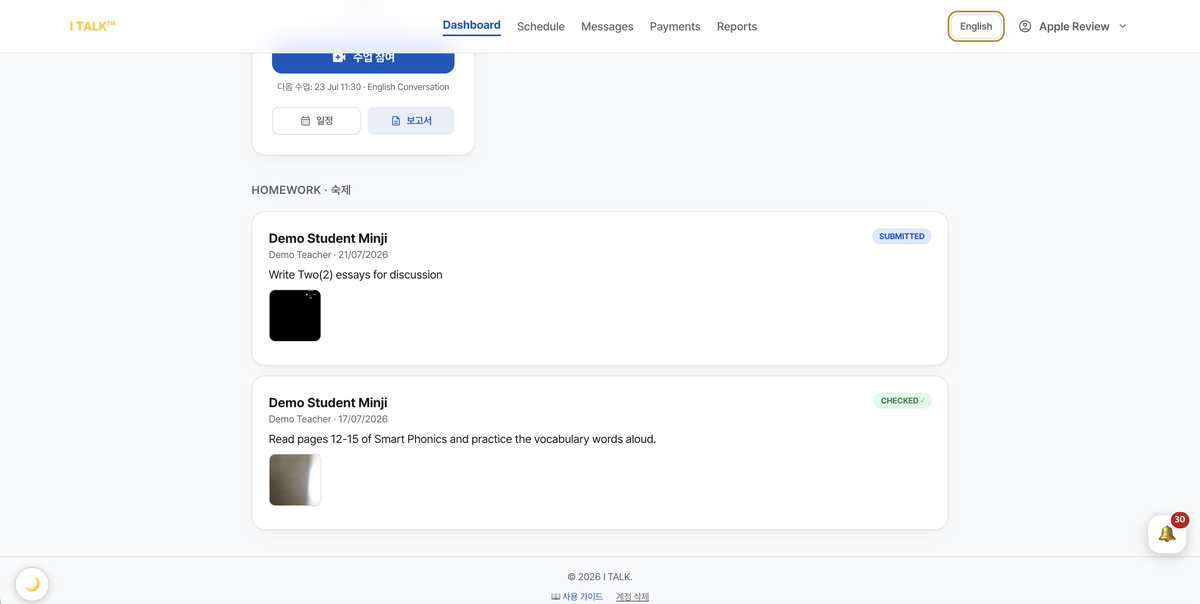
대시보드 · 수업 참여
대시보드에는 자녀별로 담당 선생님과 다음 수업이 표시됩니다. 수업 시간이 다가오면 자녀 카드에 수업 참여 버튼이 나타나고, 누르면 바로 화상 수업에 입장합니다.
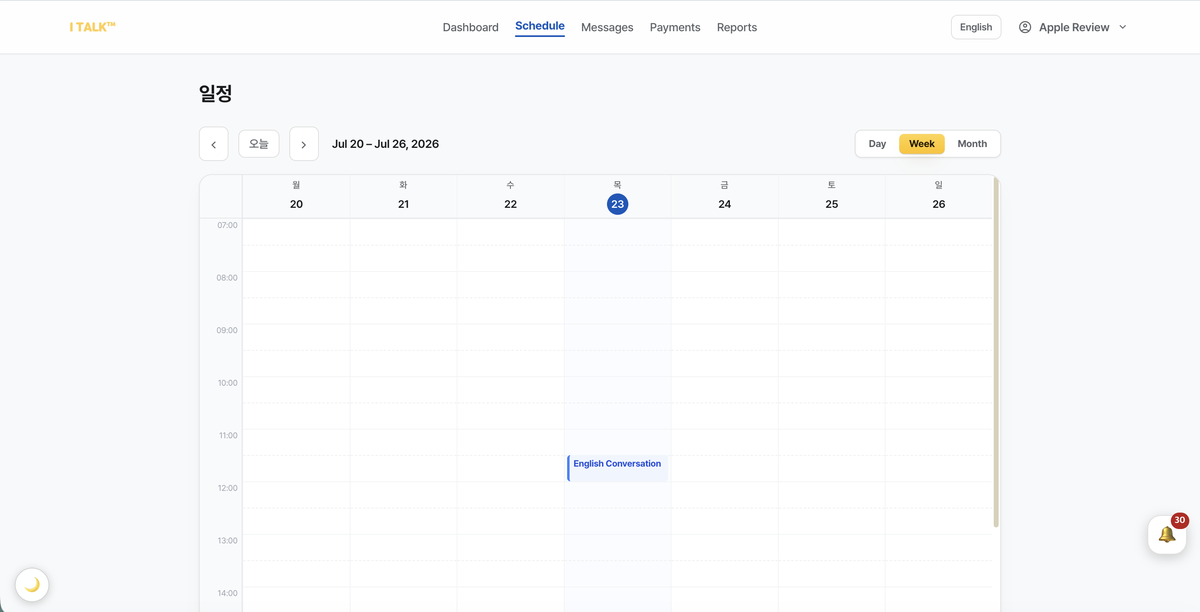
일정
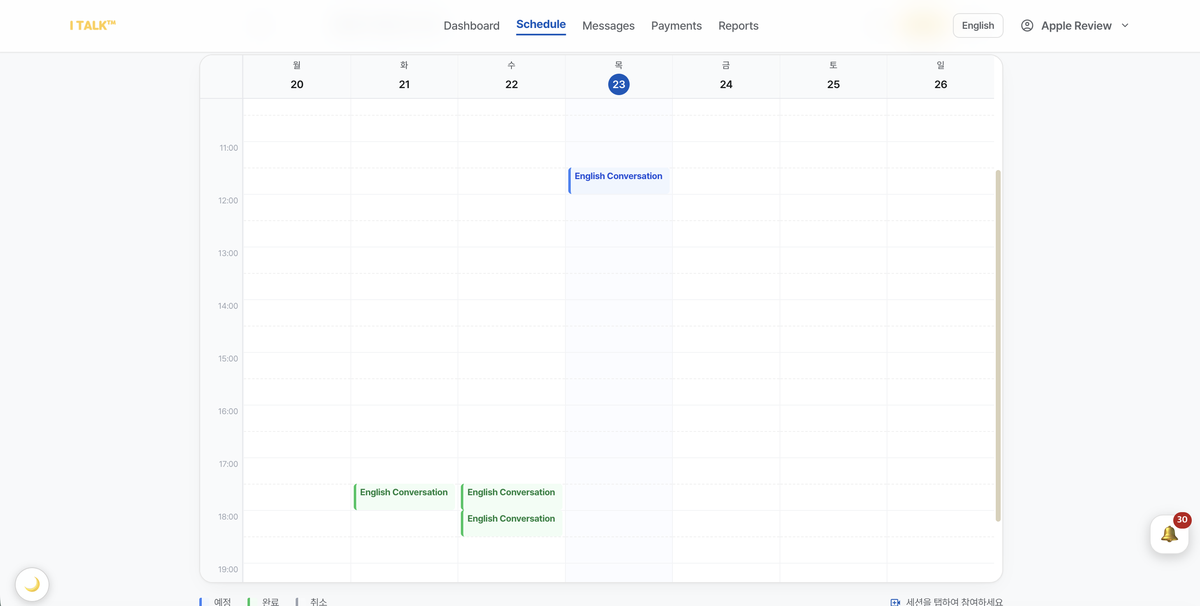
주간 캘린더에서 자녀별 수업을 확인합니다. (상단 탭으로 자녀 전환) 파란색 = 예정, 초록색 = 완료, 회색 = 취소이며, 예정된 수업을 클릭하면 바로 입장합니다. 📝 표시는 학원의 수업 메모(주제·교재·숙제)가 있다는 뜻입니다.
학습 리포트
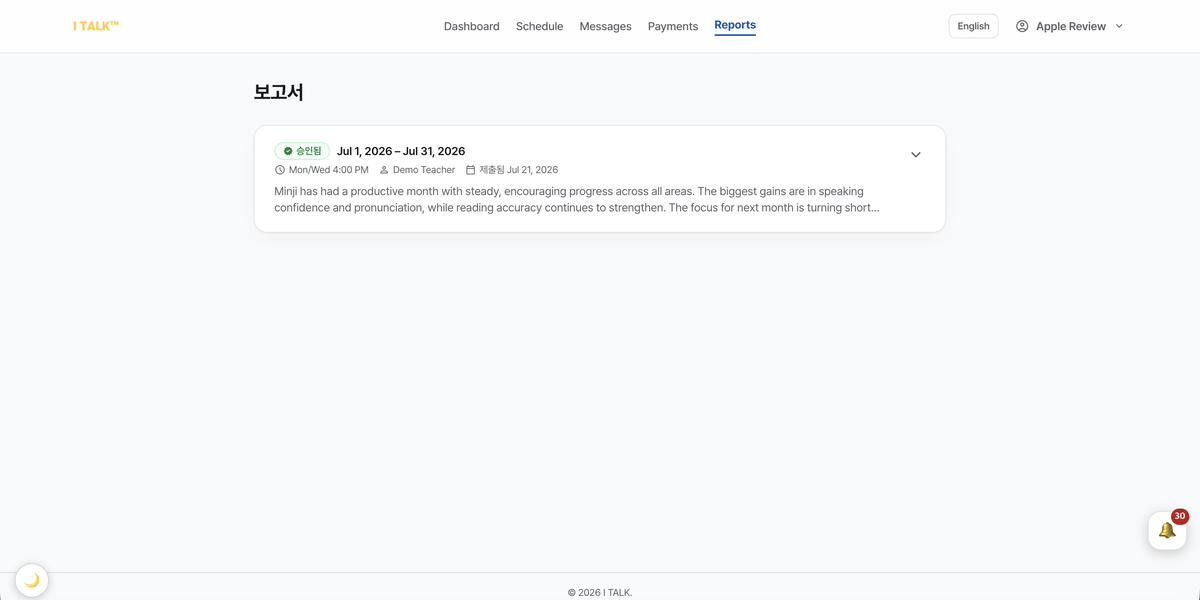
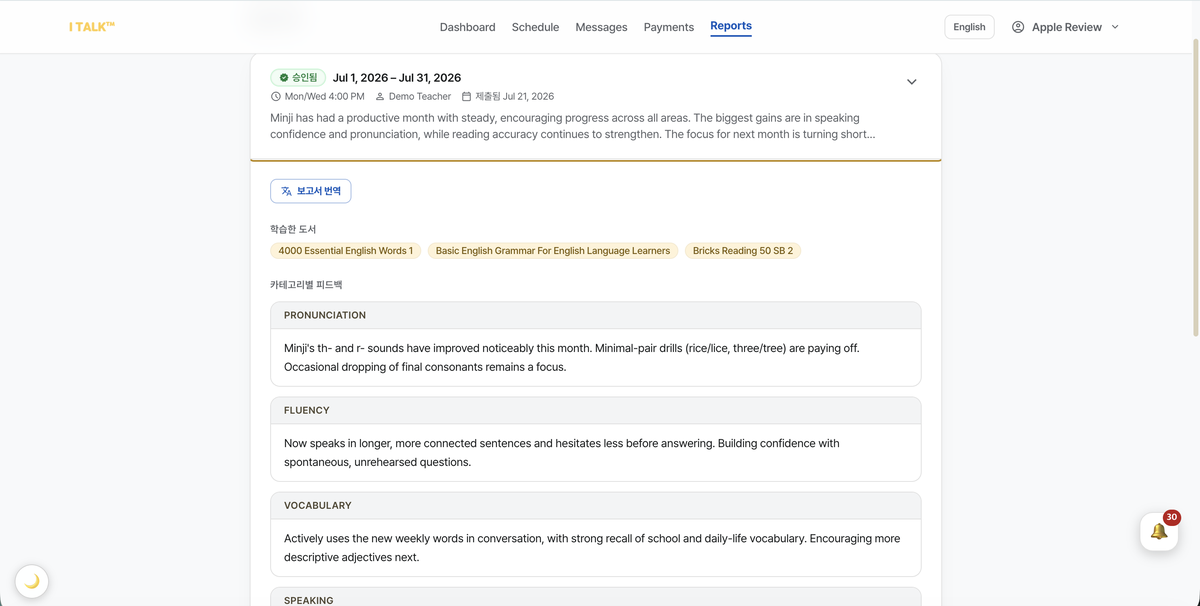
리포트 메뉴에서 승인된 학습 보고서를 자녀별로 볼 수 있습니다. 항목을 누르면 펼쳐지고, 다른 언어로 작성된 보고서는 보고서 번역 버튼으로 한 번에 번역됩니다. 새 리포트가 등록되면 이메일과 알림으로 안내해 드립니다.
결제
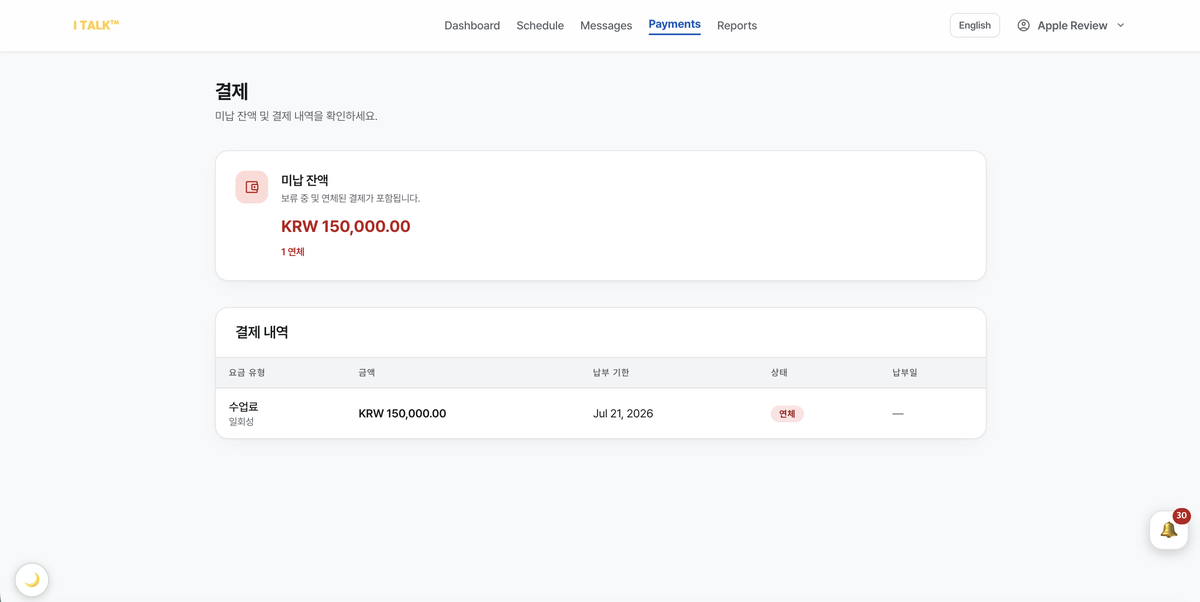
결제 메뉴에서 수업료 청구서의 금액·납부 기한·상태(완료/대기/연체)를 확인할 수 있습니다. 문의는 메시지의 문의하기 또는 [email protected] 로 연락해 주세요.
메시지 · 번역
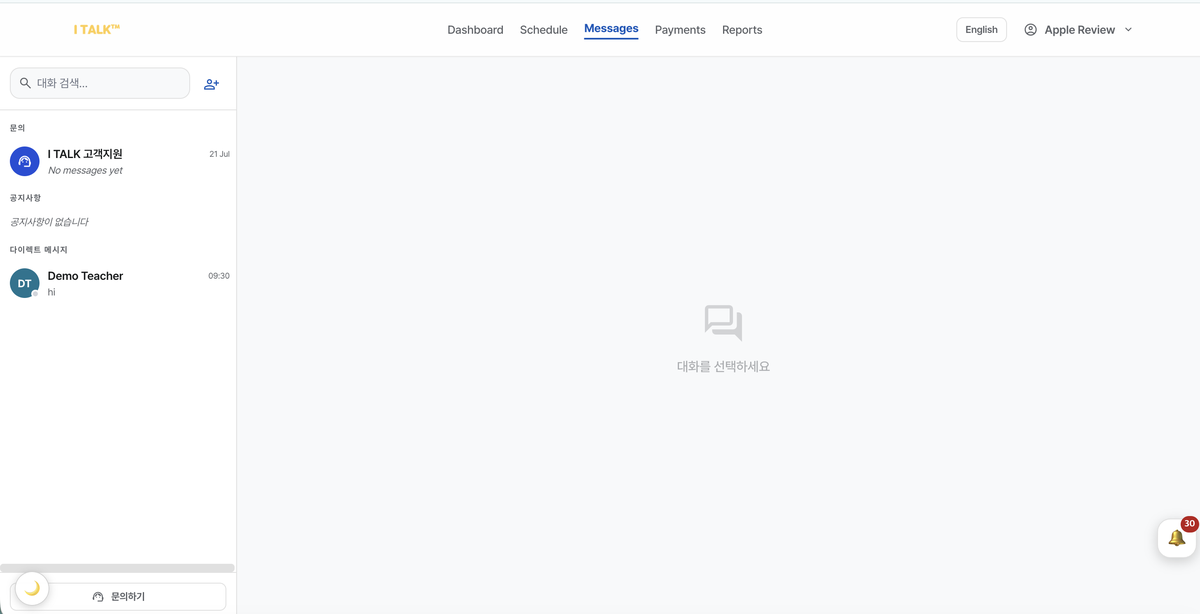
사람 추가 아이콘을 눌러 선생님에게 메시지를 보낼 수 있습니다. (학부모는 선생님에게만 메시지 가능) 다른 언어로 온 메시지에는 번역 링크가 표시되고, 내가 보낸 메시지 아래에는 읽음/안 읽음이 표시됩니다. 학원 문의는 사이드바 하단의 문의하기를 이용하세요.
설정 · 언어 · 계정
우측 상단 한국어 / English 버튼으로 언어를 바꿀 수 있고, 알림도 선택한 언어로 발송됩니다. 좌측 하단 🌙 버튼으로 다크 모드를 전환합니다. 계정 삭제는 대시보드 하단의 계정 삭제에서 가능합니다. (영구 삭제)
Sign in
Go to portal.italk.ne.kr. Teacher accounts use an @italk.ne.kr email — sign up with the access code from the admin, or use the account the admin created for you. Your Login ID and temporary password are emailed to you (check spam); you'll set your own password on first sign-in.
Home & starting class
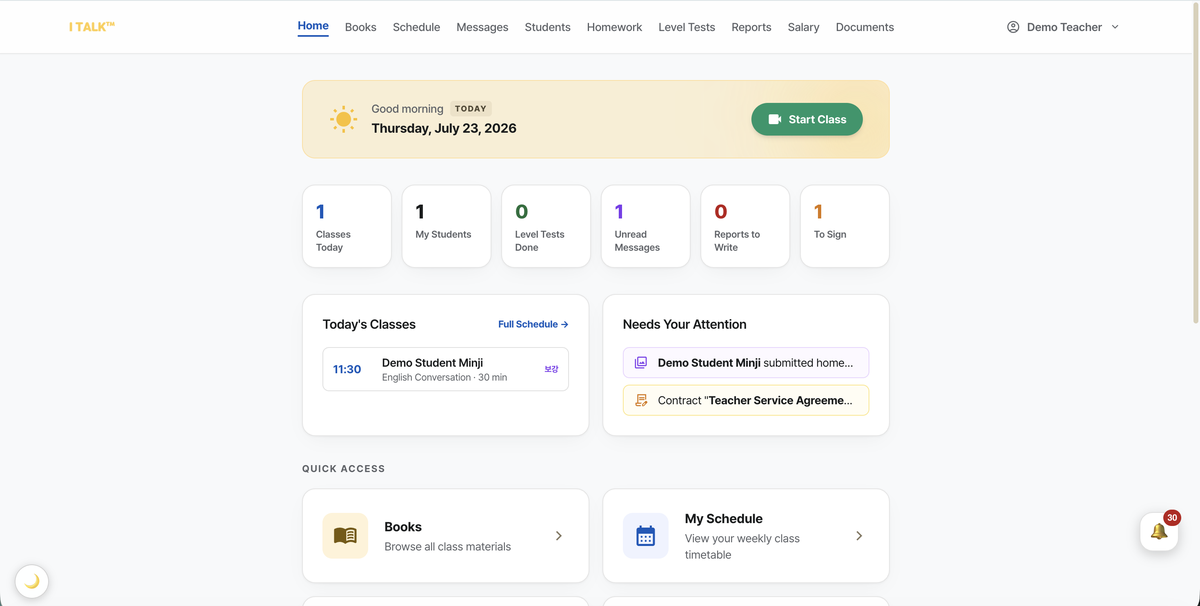
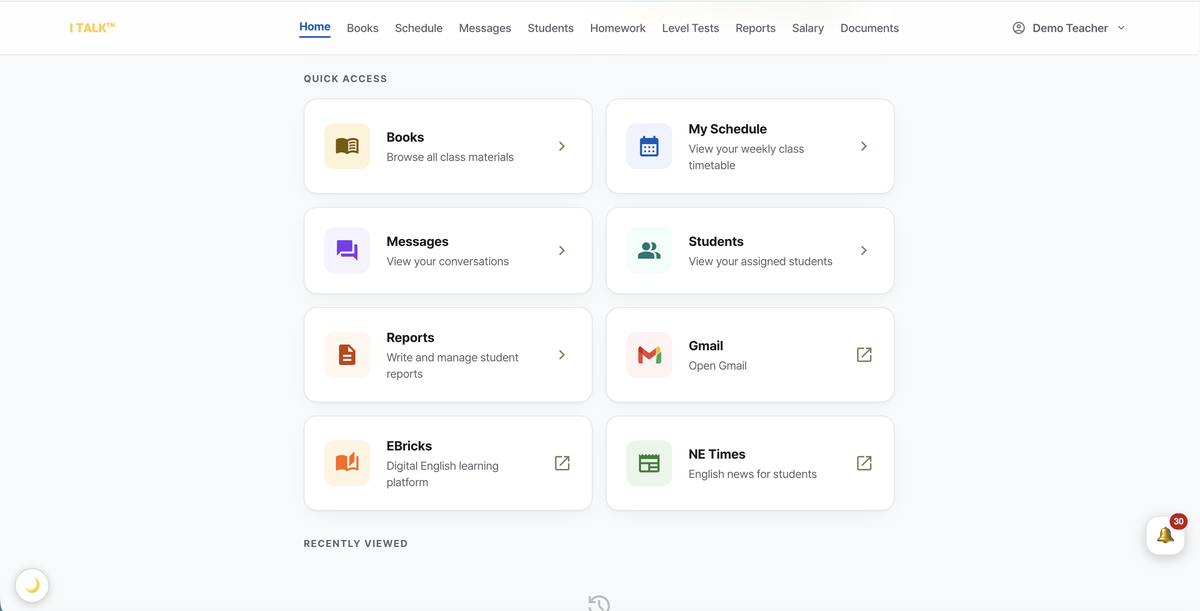
Home gives you quick access to Books, Schedule, Messages, Students and Reports, plus a Start Class button that opens your Google Meet room.
Schedule & attendance
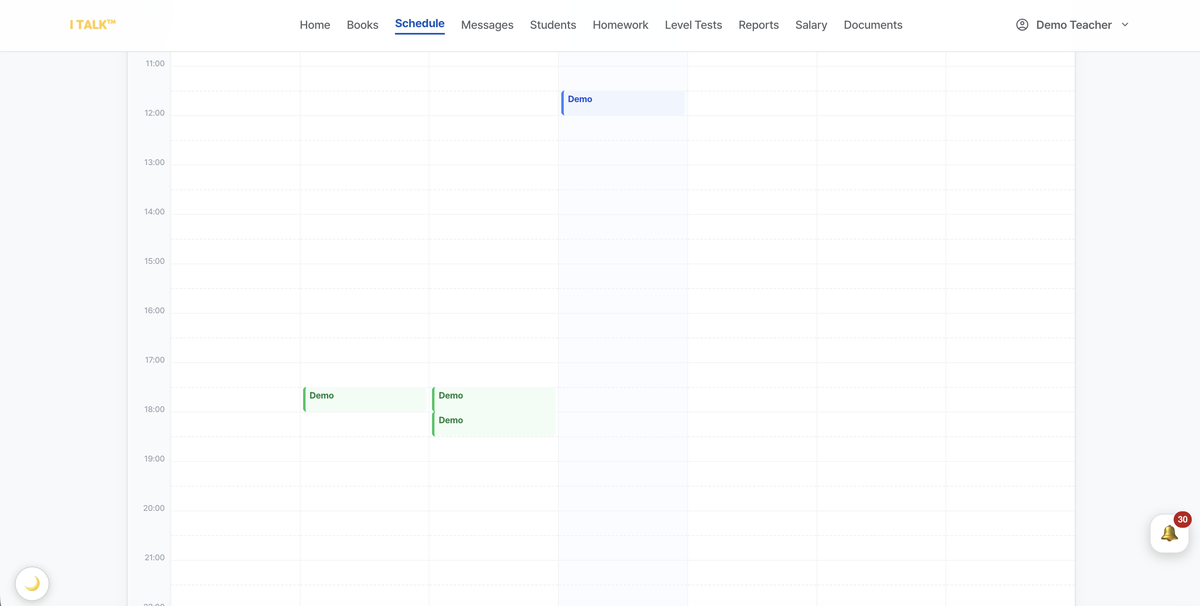
Your weekly calendar shows every session assigned to you. Click a session for details, admin notes and the Join Google Meet button. After a class, open it and press Record Attendance to log the hours actually taught — this feeds your salary records. You're notified 30 minutes before each class, and whenever a class is added, moved or cancelled.
Books & the reader
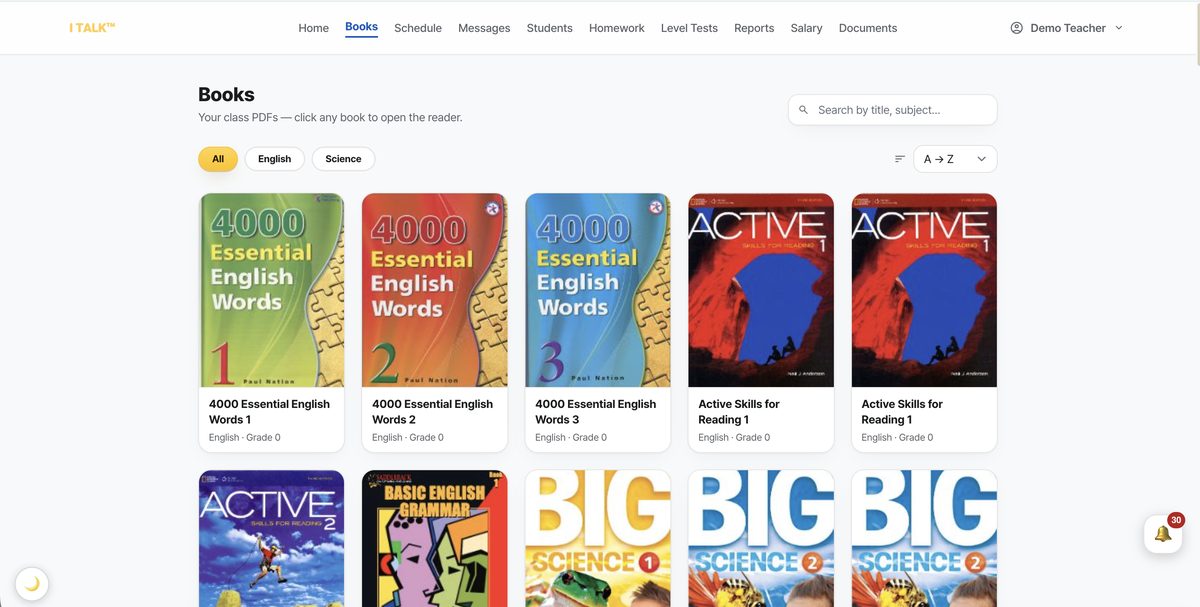
Books lists every PDF the academy shared — search, filter by subject, and click to open the reader. Inside you can highlight, draw, type and erase on any page (H / P / T / E shortcuts) and add sticky notes; everything saves to your account automatically. Books with downloads enabled show a Download button.

Students & progress reports
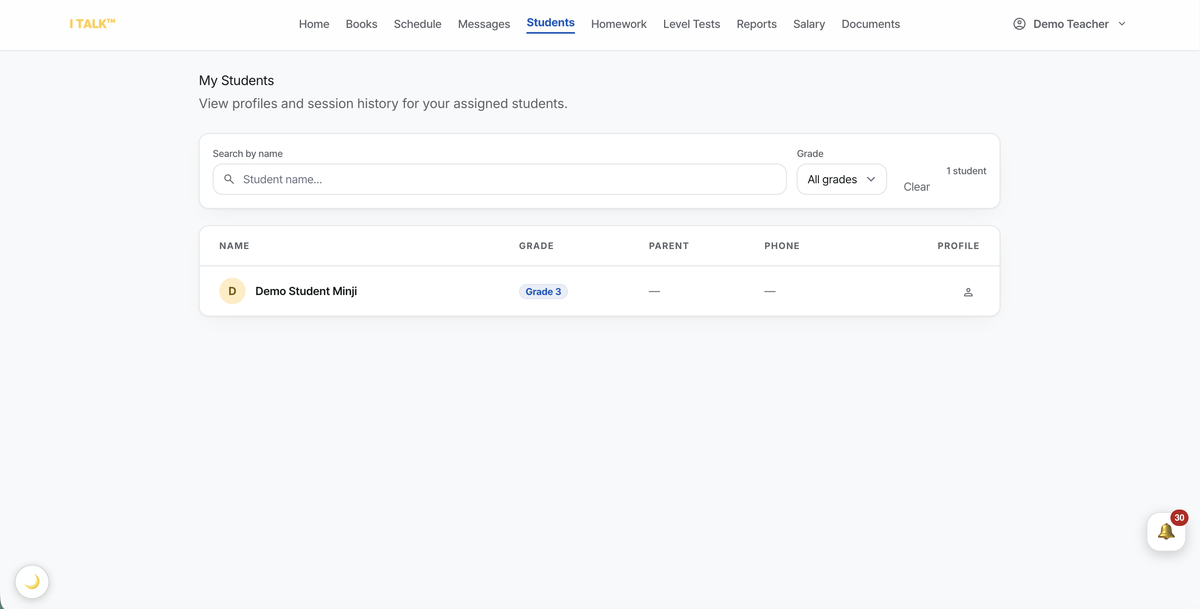
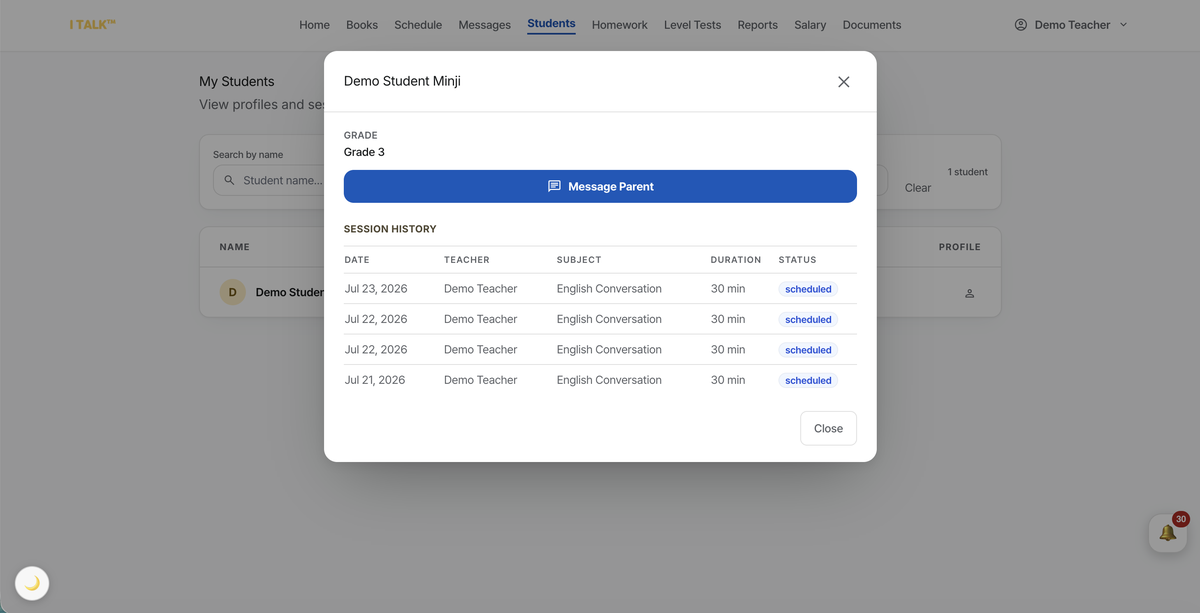
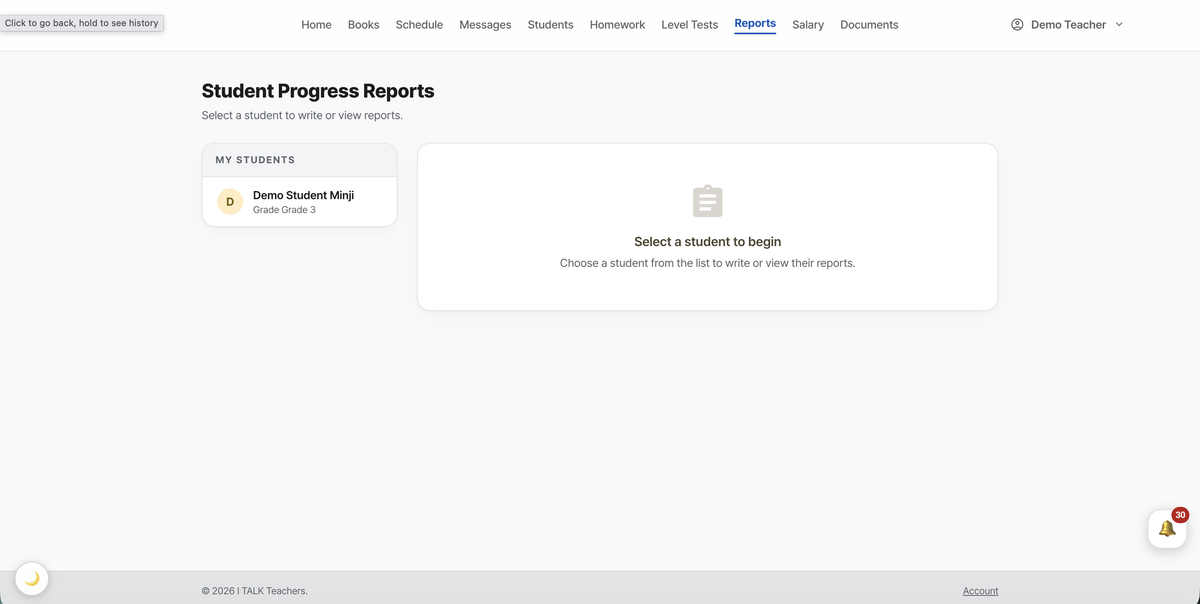
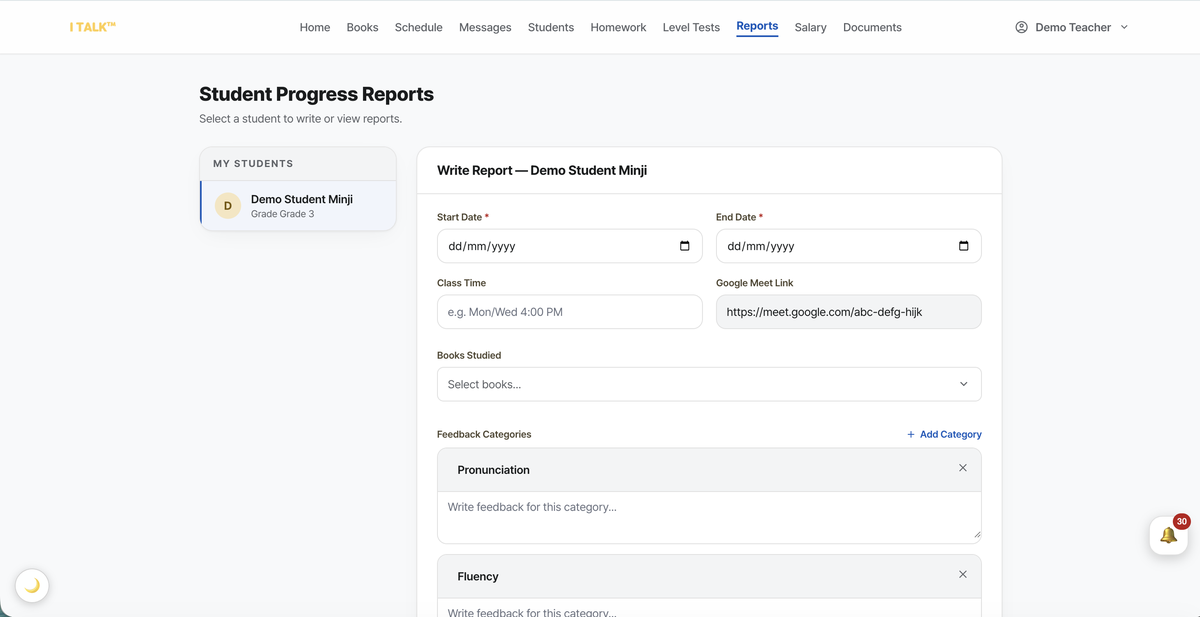
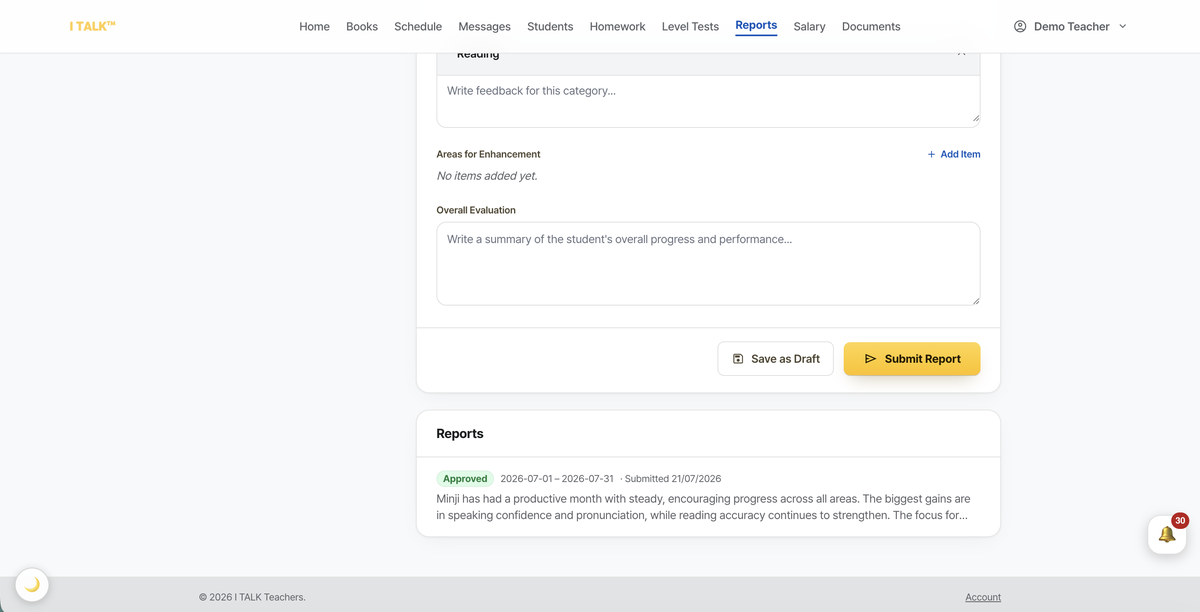
Students lists everyone assigned to you with their session history. In Reports, pick a student and write their report: books studied, category feedback, areas for enhancement and an overall evaluation. Submitted reports go to the admin for approval — once approved the parent is notified and can read (and translate) it. Declined reports come back with a reason so you can revise.
Homework & level tests
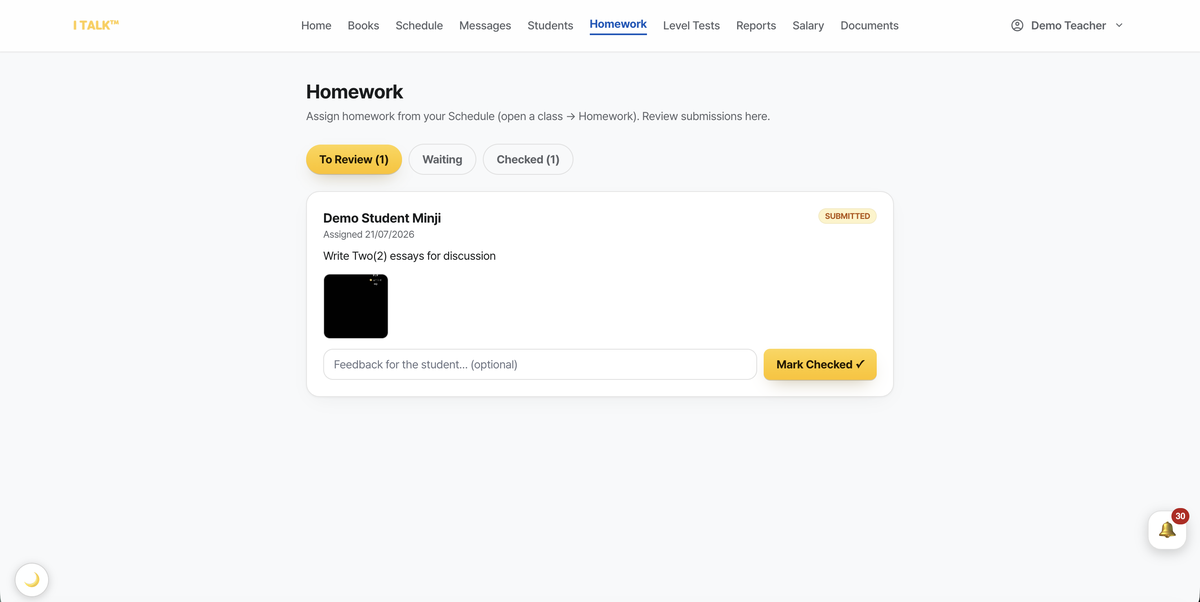
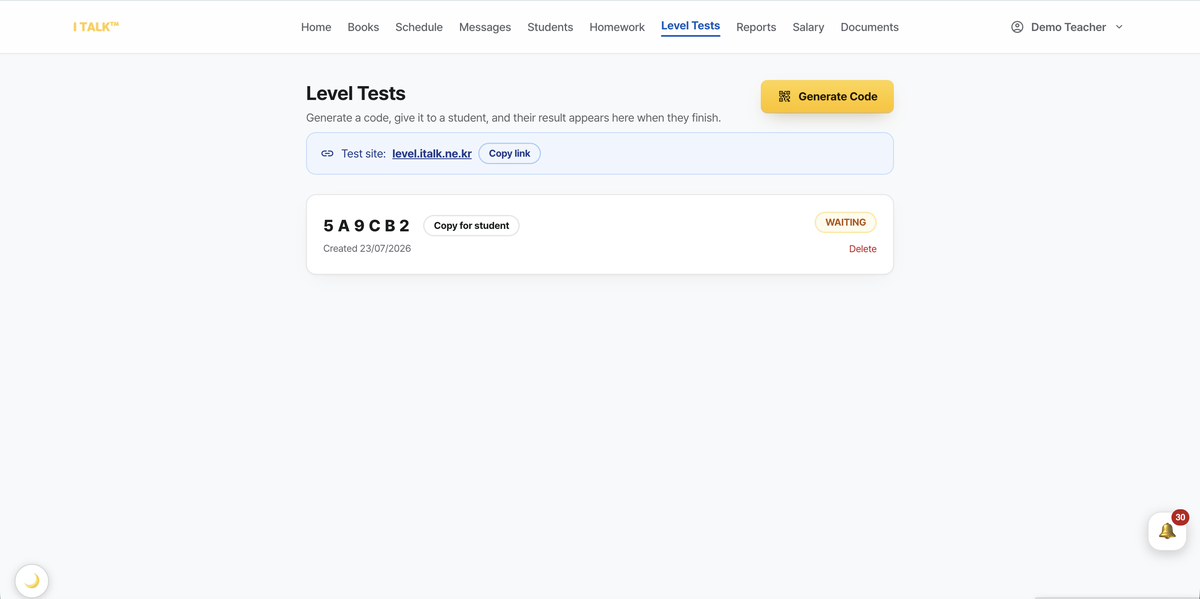
Homework lists what students have submitted from your classes — open a submission, leave optional feedback and press Mark Checked. Level Tests lets you Generate Code for a student; give them the code and the test link, and their result appears here as soon as they finish.
Messages, groups & support
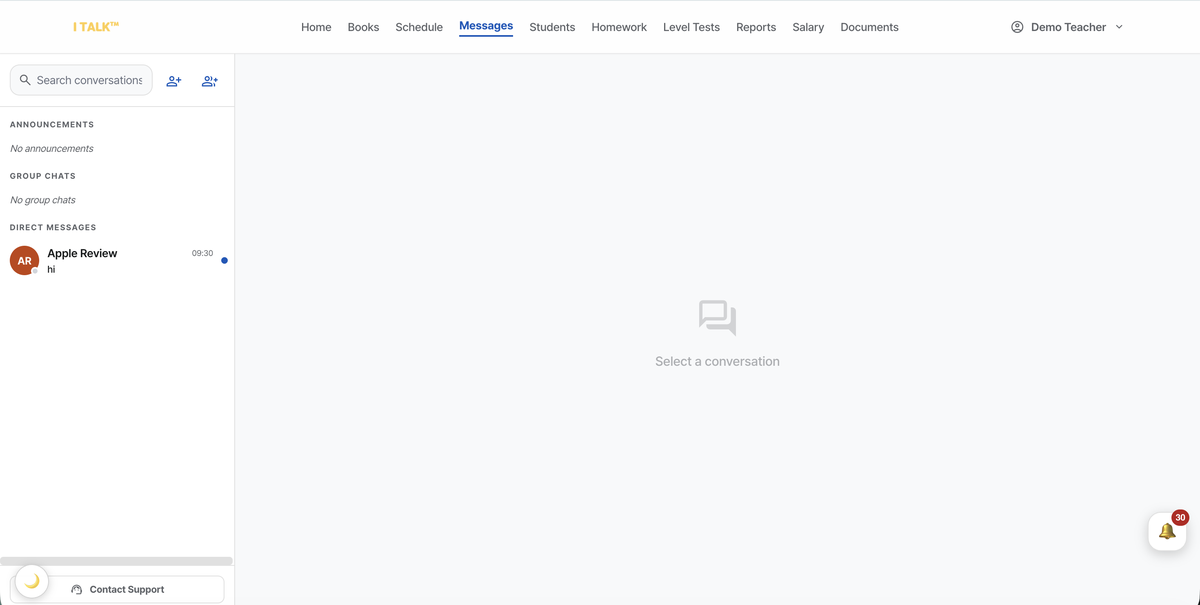
The person-add icon starts a chat with any parent or teacher; the group-add icon creates a group chat with other teachers. Korean messages show a Translate link, and your own DMs show Read / Unread. The ⋮ menu lets you leave a group or delete a conversation, and Contact Support reaches the academy directly.
Salary & account
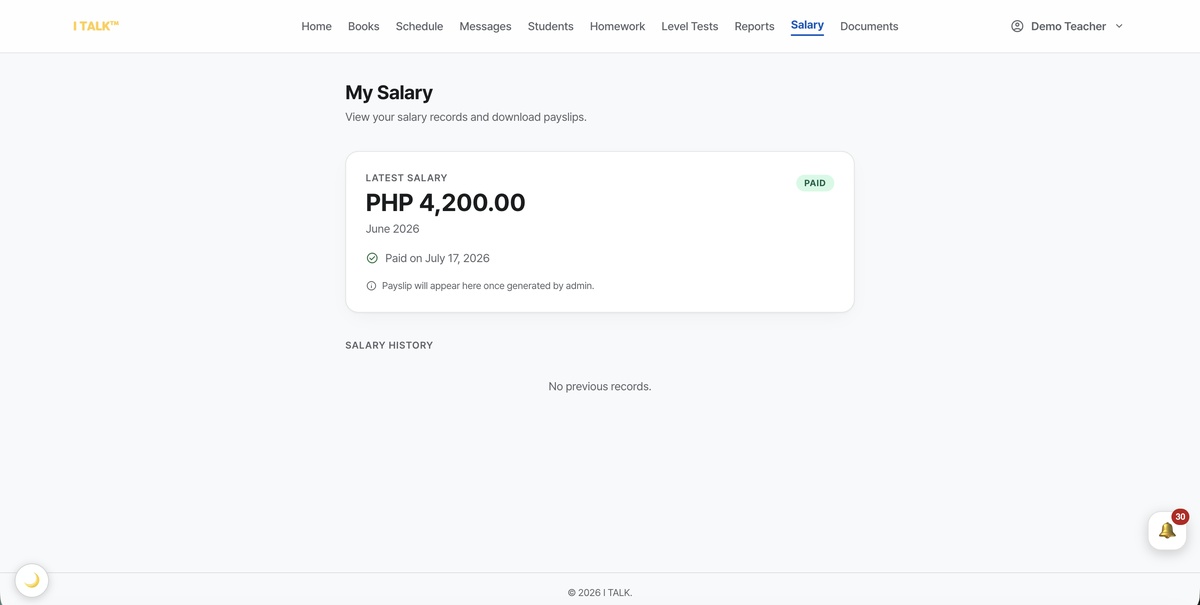
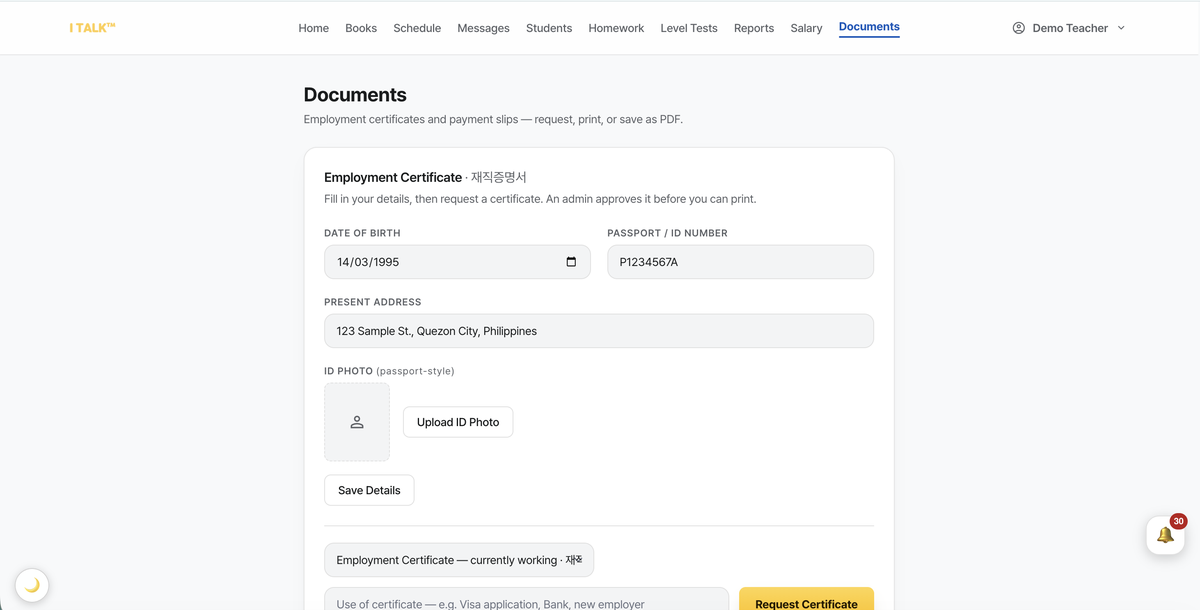
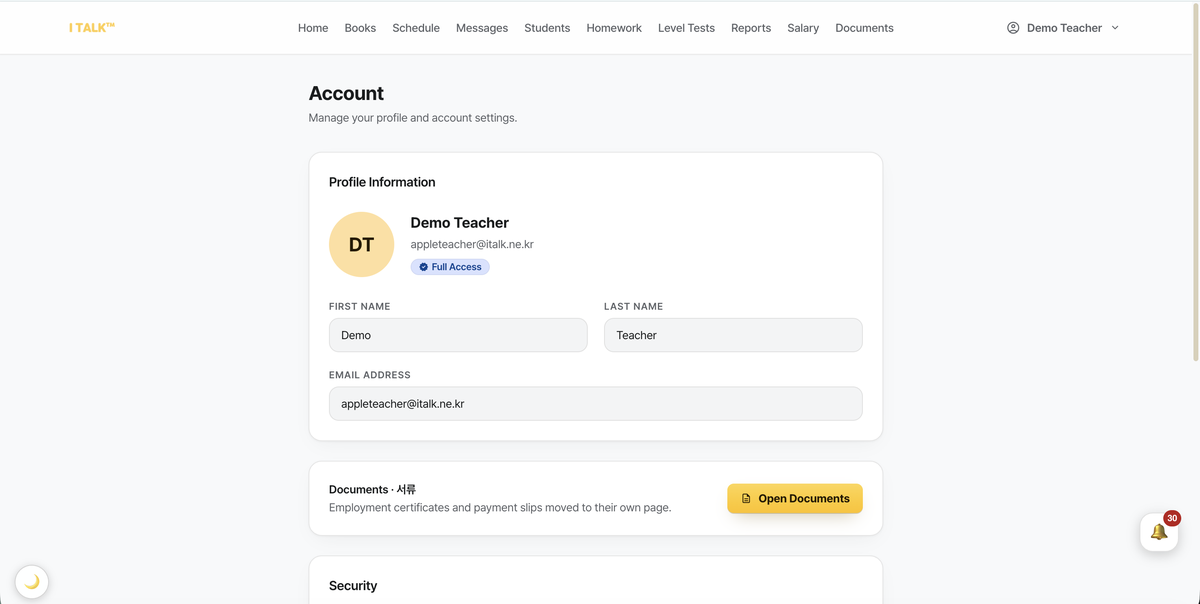
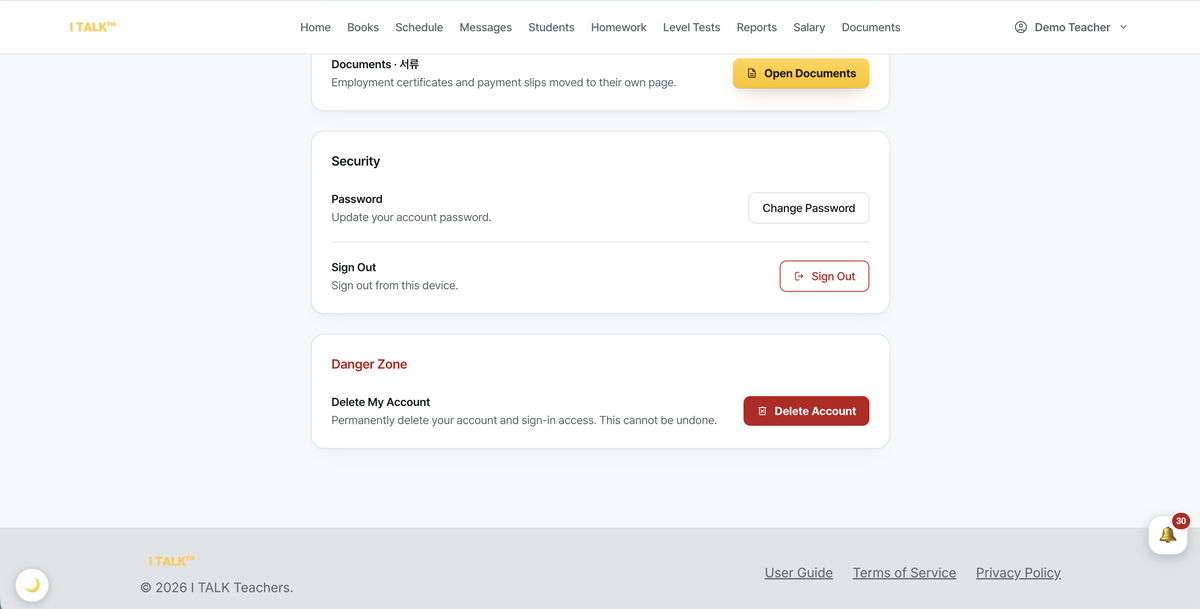
Salary lists your monthly records with status and downloadable payslips. In Account you can change your photo and password; Delete My Account is in the Danger Zone at the bottom. The 🌙 button (bottom left) toggles dark mode on every page.